Shut down and check the screen type
Turn the laptop off, disconnect external power and follow the manufacturer's cleaning instructions. A dark screen makes marks easier to see, but the more important reason is to handle the device safely. Check for special coatings or textured glass that require a particular cloth. Apple, for example, distinguishes specialised display finishes in its care guidance. Advice for a standard screen should not be applied automatically to every model.
Keep liquid under control
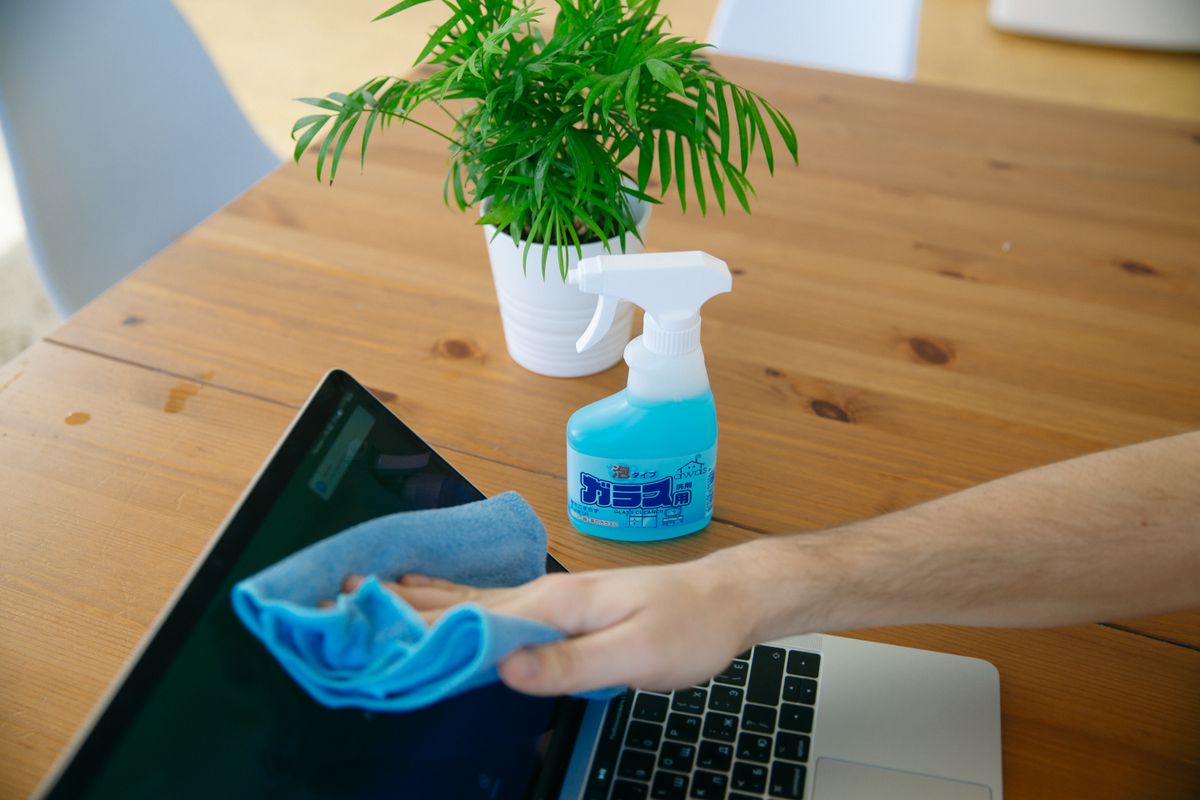
Start with the permitted dry, soft, lint-free cloth to remove light marks. If the maker allows a damp cloth or a particular cleaning solution, apply it only as directed. Do not spray liquid directly onto the display or let it run towards the bezel, ports or keyboard. Avoid household glass cleaner, abrasive materials and improvised solvents unless the device maker expressly approves them. Gentle passes are preferable to pressing hard on a stubborn spot.
Check the cloth as well as the screen
A cloth stored loose in a bag can collect crumbs or grit, turning a gentle wipe into a scratch. Keep the screen cloth clean and protected, and wash it only as its own instructions permit. Let any allowed moisture disappear fully before reconnecting power and using the computer, following the device guidance. If a mark appears beneath the surface or the coating begins to look patchy, stop cleaning. More rubbing cannot repair internal display damage and may worsen a finish problem.
Before you call it done
- Use care instructions for the exact display.
- Never spray cleaner directly onto the screen.
- Keep the dedicated cloth clean and grit-free.
Know the limit. Do not open the laptop or try to clean inside a damaged screen. Liquid ingress, cracks or an electrical fault require suitable service advice.